Performance Art in Unity: Basic Optimization Techniques
Unity is a game engine preferred by a wide range of creators, from indie developers to AAA studios, thanks to its accessibility and flexible structure. However, one of the most challenging aspects for game developers has always been achieving stable and high FPS. No matter how well a game is designed, if it suffers from performance issues, the player experience drops significantly.
In this article, we will examine, step by step, the techniques used for true mastery of performance in Unity, practical optimization methods, and the FPS-boosting techniques applied by professionals.
1. The Foundation of Performance: Reading the Profiler Correctly
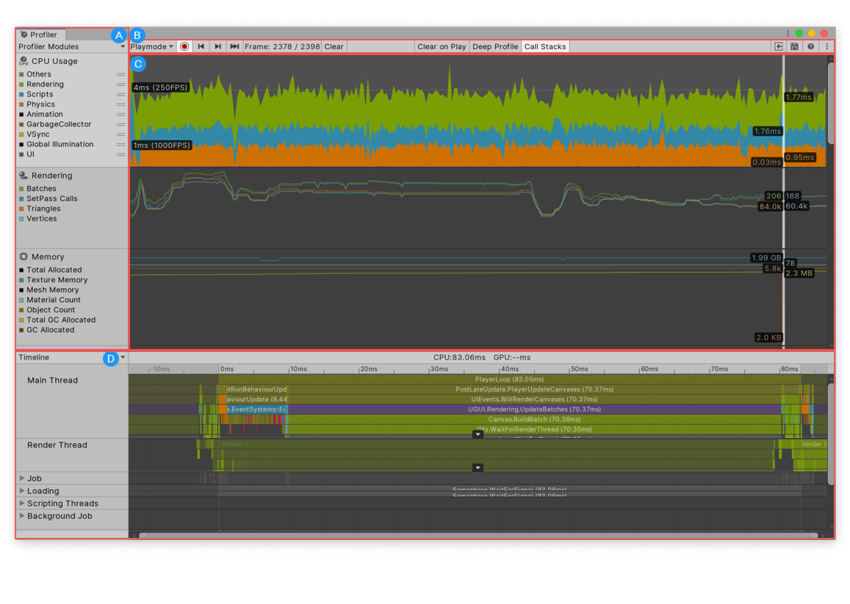
The first step in optimizing a game is understanding where the problem lies. The Unity Profiler allows you to clearly see CPU and GPU bottlenecks.
Key Areas to Watch in the Profiler
CPU Usage: Shows script-related load, GC (Garbage Collection) triggers, and Update/FixedUpdate intensity.
GPU Usage: Reveals post-processing, lighting, rendering load, and shader complexity.
Memory: Crucial for monitoring texture and mesh sizes, GC load, and memory leaks.
Someone who cannot read the Profiler cannot optimize. Random optimization attempts usually accomplish nothing, and as the project grows, they can even cause harm.
Profiler Screen
2. Draw Call Management: The Heart of Render Performance
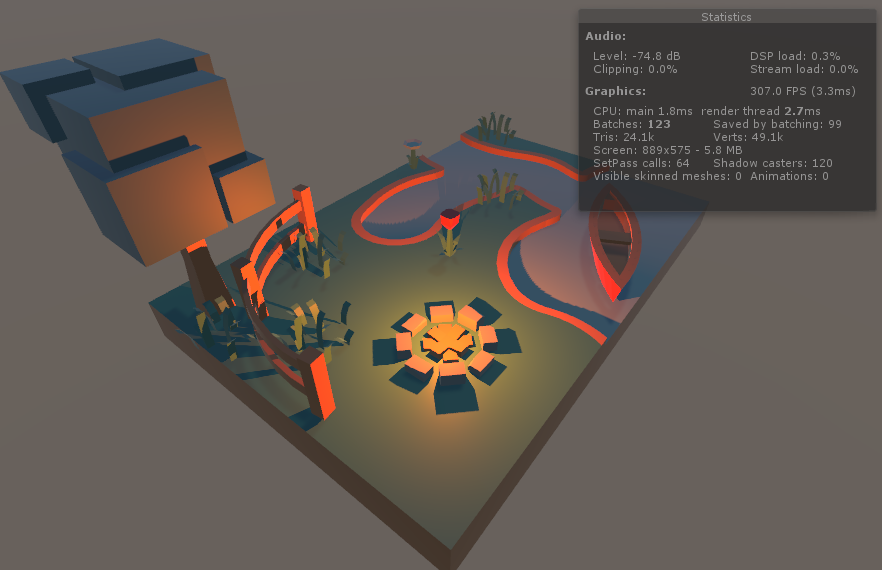
One of the biggest FPS killers in Unity—especially on mobile platforms—is producing excessive draw calls. A draw call = a rendering command sent to the GPU.
How to Reduce Draw Calls
Static Batching: Processes static objects as if they are a single mesh.
Dynamic Batching: Combines small objects with similar materials (though it has limitations).
SRP Batcher: Provides massive FPS gains in URP/HDRP projects.
Atlas Usage: UI, sprite, or texture atlases help reduce draw call count.
Mesh Combine: Merges multiple environmental objects into a single mesh to reduce processing.
Especially in URP, enabling the SRP Batcher can dramatically reduce load even when the scene contains hundreds of materials.
Batches - Draw Call
3. Lighting and Shadow Management
Lighting is one of the most demanding tasks for the GPU. Real-time shadows, in particular, are a complete killer on mobile.
Performance-Friendly Lighting Tips
Keep the number of real-time lights to a minimum.
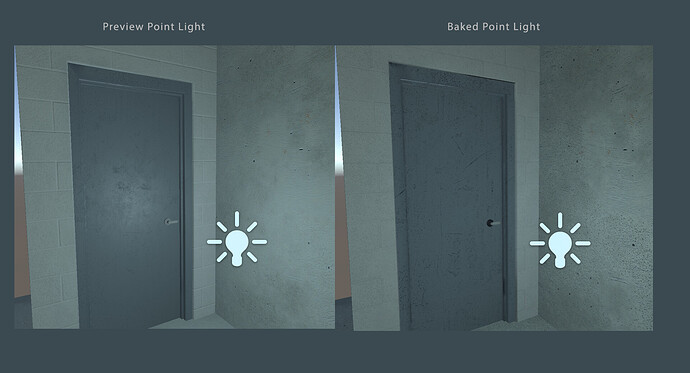
Use baked lighting (huge difference for both mobile and PC).
Do not set Shadow Distance unnecessarily high.
Shadow Resolution should match the device tier.
Avoid excessive use of Point Lights + Shadows in the scene.
Proper lighting improves FPS while preserving visual quality.
Baked Lighting
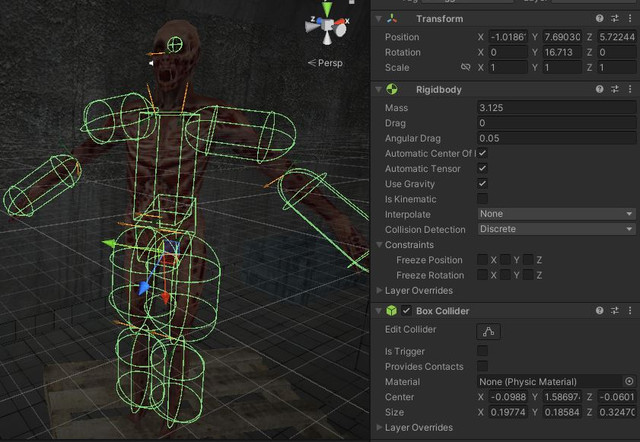
4. Physics and Collider Optimization
The physics engine places load on both the CPU and GPU.
Optimization Suggestions
Avoid unnecessary Rigidbody usage.
Prefer Box/Sphere/Capsule colliders instead of Mesh Colliders.
Do not reduce the physics timestep value more than necessary.
Simplify complex physics simulations for lower-end devices.
In scenes that use triggers, keep collider complexity to a minimum.
Even a simple change can significantly improve physics performance.
Rigidbody and Colliders
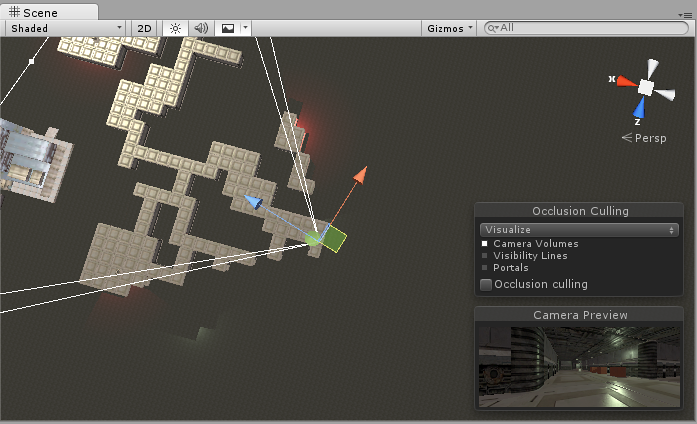
5. Occlusion Culling: The Purest Form of Performance—Not Rendering What You Can’t See
Unity’s Occlusion Culling system prevents the GPU from processing objects not visible to the camera, providing substantial performance gains. The difference is dramatic especially in indoor areas, city environments, heavily populated scenes, and FPS games.
When Should You Use Occlusion Culling?
If the scene includes many buildings, walls, rooms, or corridors
When the camera often cannot see the objects behind obstacles
When the design is semi-closed rather than open world
If GPU load is high on mobile
In scenes with a high number of draw calls
Tips for Correct Usage
Mark static objects as Occluder or Occludee from the Static menu.
Occluder Static: The object can hide others (walls, buildings, rocks).
Occludee Static: The object can be hidden (furniture, small items, etc.).
Do not mark windows, glass surfaces, or semi-transparent walls as Occluders.
After baking occlusion data, move the camera around to test what is being culled.
In overly complex scenes, occlusion data size may grow; reduce its resolution if needed.
Performance Benefits
Dozens or even hundreds of objects are removed from the GPU’s render list.
Draw call count can drop by 20–50% on its own.
Provides major FPS boosts especially on mobile devices.
In indoor environments, it is often the optimization that provides the highest gains.